
PC Games · Performance guide
Best FC 27 PC settings for smoother frame times and lower input delay
Use this FC 27 PC settings baseline to steady frame times, cut avoidable input delay, manage VRAM, and tell local stutter from an online connection problem.
The brief answer
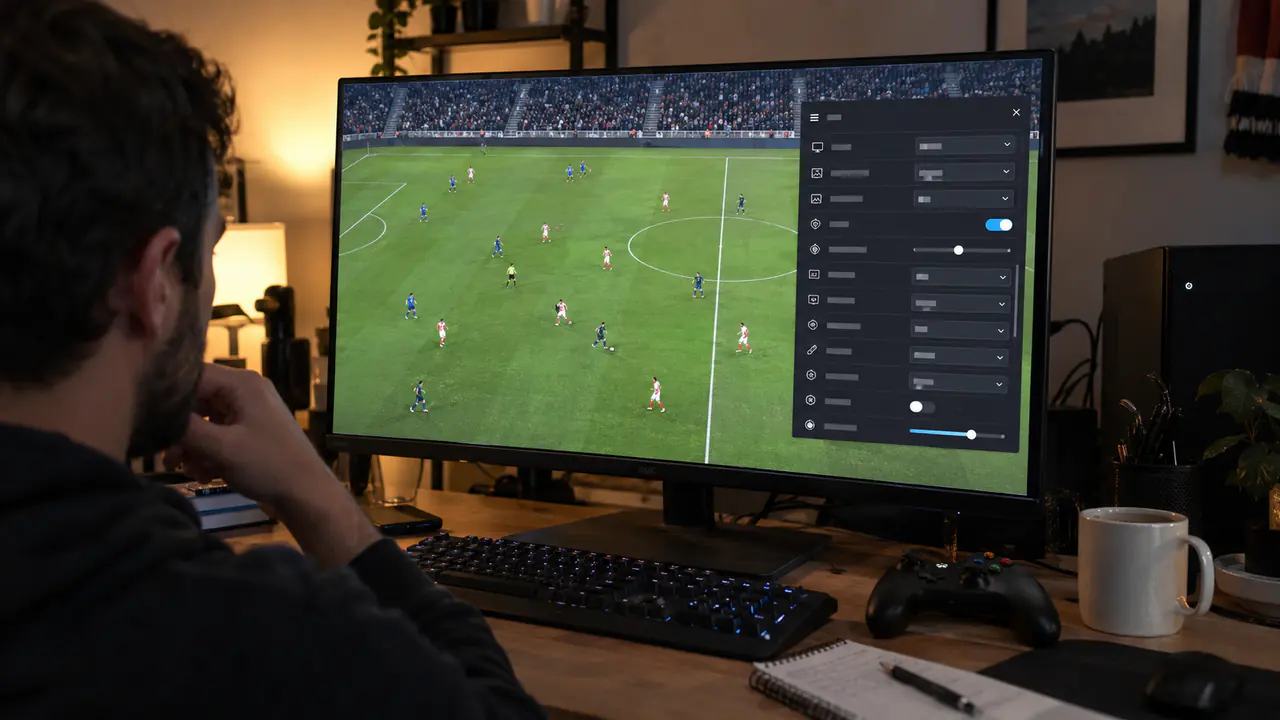
Use Performance as the baseline, keep native resolution, turn Enhanced Ultra off, and cap FC 27 at a rate your PC can hold.
Watch the in-game VRAM estimate, disable motion blur, and lower stadium detail before sacrificing render scale. Then test an offline Kick-Off match. If offline play is smooth but Ultimate Team or Seasons feels delayed, stop changing graphics and check ping, jitter, packet loss, and EA's current service status.
FC 27 unlocked globally on PC at 23:00 UTC on 24 September 2026. This guide covers version 1.0.1 and uses official guidance plus launch-week player reports; it is not a TaskUp hardware benchmark.
The FC 27 PC settings baseline
This is a starting point, not a promise of a particular frame rate. EA's own PC chart spans six hardware targets, from 720p Low at 60 FPS to 1440p High at 120 FPS. That range is why a universal “best settings” list is misleading: the useful target is the highest rate your machine can sustain cleanly through a full match.
| Setting | TaskUp baseline | Why |
|---|---|---|
| Performance preset | Performance first; try Balanced after the baseline is stable | FC 27's new preset provides a reproducible starting point. |
| Display mode | Fullscreen | A sensible first test for a single-monitor competitive setup. Use Borderless if fast app switching matters more. |
| Resolution / render scale | Native resolution / 100% | Protects pitch and player clarity. Reduce resolution only when the GPU is still the limit after cheaper options are lowered. |
| Frame-rate limit | A stable 60, 80, or 120 FPS tier your PC can hold | Consistent delivery matters more than a high average that repeatedly falls below target. |
| V-Sync | Off for the first latency test | Creates a clean input baseline. If tearing is distracting, test V-Sync or your display's variable-refresh setup separately. |
| Dynamic resolution | Off initially | Keeps image quality consistent while you diagnose. Enable it only if a stable target matters more than moment-to-moment sharpness. |
| Rendering quality | Medium | A balanced launch setting; raise only after a full-match stability check. |
| Grass / crowd / terrain detail | Low | Reduces stadium load before compromising the core play view. |
| Cloth / effects | Medium | Retains useful presentation without starting at the expensive end. |
| Lighting / ambient occlusion | Low | Reasonable cuts when frame-time consistency is the priority. |
| Strand-based hair | Off | Most visible in close-ups, less important during play. |
| Motion blur | Off | Keeps camera movement clearer and is consistently recommended across current settings guides. |
| Enhanced Ultra Visuals | Off | EA disables this by default; it is a fidelity extra for high-end headroom, not a competitive baseline. |
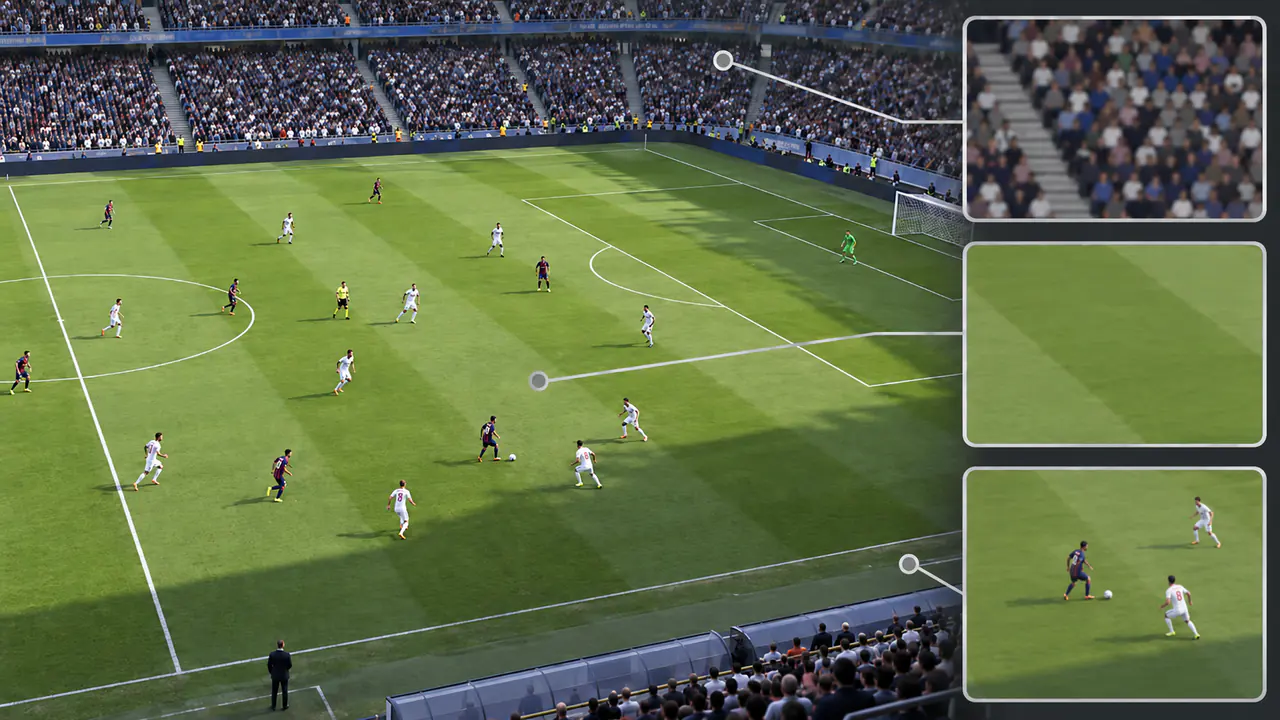
EA's Ultra Performance target pairs 120 FPS at 1440p High with an RTX 4070 or RX 7800 XT, a high-end CPU, 12 GB of VRAM, and 32 GB of dual-channel RAM. On weaker hardware, a clean 60 or 80 is the better target.
Tune for frame time, not the menu counter
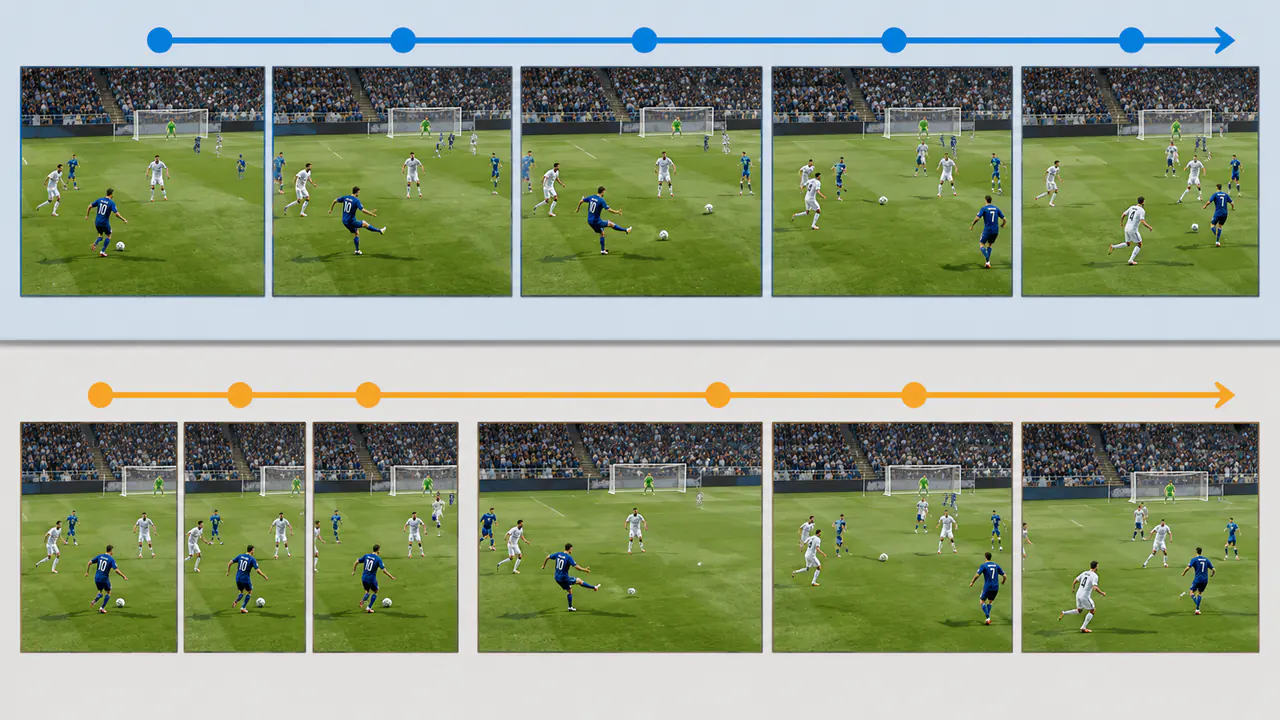
A frame counter can say 120 while the match still feels uneven. EA's support page explicitly lists slow-motion play, delayed input, and periodic frame-time spikes as PC performance symptoms—even when average FPS looks normal. Launch-week players are reporting the same distinction: some see high, stable counters but describe twitchy camera movement or heavy controls.
That does not prove one shared bug. Other players, including some on mid-range hardware, report smooth play without unusual changes. The useful response is controlled testing rather than importing a long driver-profile checklist.
- Pick one sustainable target. Start at 60 FPS if the machine is close to EA's recommended tier. Try 80 or 120 only when the PC holds that target during gameplay, replays, corners, and crowded stadium scenes.
- Change one variable at a time. Run the same offline Kick-Off fixture after each adjustment. A ten-setting batch gives you no way to identify which change helped or hurt.
- Check the new VRAM estimate. FC 27 now predicts maximum in-game VRAM use. Treat it as a guardrail: if the estimate presses against your card's capacity, lower quality before adding Enhanced Ultra options.
- Watch consistency through a full match. Menus and training drills do not reproduce every stadium, broadcast, and cutscene load. Retest before raising detail.
Input delay: separate the local path from the online path
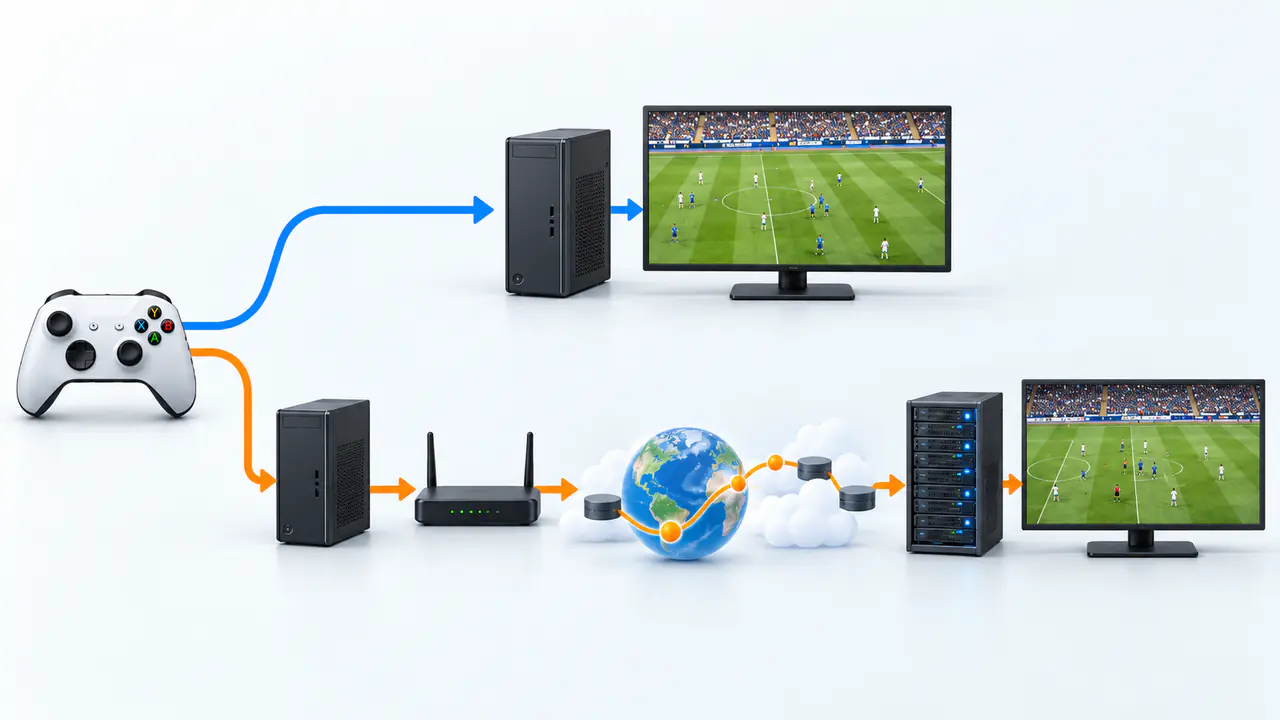
“Input delay” can describe at least two different problems. A local performance issue can delay the visible response even offline. An online connection issue can make an otherwise smooth match feel late because of high ping, jitter, packet loss, congestion, or a less suitable data centre. Graphics settings only address the first path.
- Retest on the Performance preset
- Lower the frame-rate target
- Close overlays, browsers, and recording tools
- Update the GPU driver
- Reset the per-game GPU profile to defaults
- Check dual-channel RAM and Windows performance mode
- Enable FC's ping and connection indicators
- Check ping, packet loss, and jitter
- Use wired Ethernet where possible
- Stop large downloads and 4K streams
- Check EA's server status
- Use the EA Connection Quality Report
Version 1.0.1 fixed unexpectedly high ping in some Grounds league matches and a custom-control input issue, but its notes do not claim a universal fix for PC latency or stutter. If the problem survives offline testing on a conservative preset, record the CPU, GPU, RAM configuration, storage type, resolution, preset, frame-rate target, and exact mode before filing a report.
Should you use an NVIDIA or AMD frame cap?
Only as a controlled fallback. A launch-week Radeon report says moving the cap from FC 27 to AMD's driver software cleaned up stutter on that specific RX 7800 XT and 240 Hz setup. Replies include apparent successes, disagreements over the correct cap, and a thermal warning. Other players say FC 27 is smooth on defaults.
If the in-game limiter looks uneven on your machine, compare it with a per-game driver cap at the same target. Do not stack multiple caps. Keep V-Sync, variable refresh, and the limiter unchanged between runs except for the single option being tested, and watch GPU temperature and power draw in menus as well as matches.
Current reports are contradictory, and aggressive profiles can make diagnosis harder. Begin from the GPU driver's default per-game settings.
The hardware checks that settings cannot replace
EA now specifies dual-channel RAM across every hardware tier and says it can outperform the same memory capacity in single-channel mode. The company recommends an SSD from the 1080p/Medium tier upward, with 100 GB of storage. Those are not glamorous tweaks, but they are more defensible than editing hidden configuration files.
Also check sustained behaviour. A PC that begins smoothly and degrades after 20 minutes may be hitting a temperature, power, or background-load problem rather than a graphics option that is universally “bad.” Use the same full-match test, close nonessential apps, and verify that laptop performance mode is active when plugged in.
The practical recommendation
For launch week, prioritize a boring, repeatable baseline: Performance preset, native resolution, 100% render scale, motion blur and Enhanced Ultra off, restrained stadium detail, and a frame-rate target your PC holds. Once offline frame delivery is clean, raise one visual setting at a time.
If delay appears only online, graphics changes have reached the end of their usefulness. Turn on connection monitoring and investigate the network path instead. That split saves more time than cycling through someone else's control-panel profile and hoping their hardware, monitor, and route to EA's data centre match yours.
FC 27 PC settings FAQ
What is the best FC 27 preset for lower input delay?
Start with Performance. It gives you a consistent diagnostic baseline. Move to Balanced only after the game holds your frame-rate target through a full offline match.
Should I turn V-Sync off in FC 27?
Turn it off for the first latency test. If you then see distracting tearing, compare V-Sync or your monitor's variable-refresh setup separately. There is no one correct combination for every display.
Why does FC 27 feel delayed when FPS is high?
A high average can hide uneven frame delivery. The cause may also be online ping, jitter, or packet loss. Test offline Kick-Off first: if the problem disappears, check the connection path rather than lowering every graphics setting.
Is FC 27 version 1.0.1 the latest PC patch?
It is the newest documented PC version as of 25 September 2026. Check EA's current patch notes before applying this guide later in the season.
Does FC 27 need an SSD and dual-channel RAM?
An HDD is supported at the minimum tier, but EA recommends a 100 GB SSD for the recommended tier and above. EA specifies dual-channel RAM for every tier and says it may improve performance and reduce stutter on some systems.
This guide was checked on 25 September 2026 against EA's PC Deep Dive, system requirements, performance and connection support pages, version 1.0.1 notes, current gameplay material, independent settings coverage, Steam discussion, and launch-week player reports. It is an evidence-based setup workflow, not a TaskUp hardware benchmark; player workarounds are identified as provisional where evidence is mixed.
Based on EA SPORTS FC 27 PC Deep Dive. Release timing, balance, and features may change after publication.

Daniel Cho
Benchmarks demanding releases, traces frame-time problems, and turns settings, patches, and hardware trade-offs into practical PC advice.
Continue reading