
Guides · PC troubleshooting
FC 27 won't launch on PC? Fix Javelin AntiCheat, EA App, and Steam errors
Use this safe FC 27 PC troubleshooting order to separate Javelin AntiCheat and launcher conflicts from black-screen and post-launch crashes.
The brief answer
Record the exact failure point, then repair the smallest broken layer.
Check service status and restart once, verify FC 27 in its storefront, repair Javelin only when that branch points there, and close one conflict candidate at a time. Use Secure Boot only for a matching error. If the game window opens and then crashes, capture the Windows Application log before changing more settings.
FC 27 is released on PC through the EA app, Steam, and Epic. This guide was checked on September 26, 2026 against version 1.0.1 and Steam build 25417797. Its stability notes do not claim to fix every launch or Javelin failure.
Identify which failure you actually have
The Javelin window is a checkpoint, not a diagnosis. Before changing the system, take a screenshot of the exact message and split the problem into the branch that matches what you see.
| What you see | Most useful first branch |
|---|---|
| Javelin shows a named error or code | Follow EA's matching Javelin error guidance. |
| Javelin disappears and the launcher becomes active again | Repair files, reinstall Javelin, then isolate launcher and background conflicts. |
| An FC 27 window opens black, hangs, or closes | Treat it as a post-Javelin game crash and collect Windows logs. |
| FC 27 reaches the menu but online modes fail | Check EA and platform service status; this is no longer a launch failure. |
| FC 27 reaches gameplay but stutters or feels delayed | Use a performance and connection diagnostic, not repeated anti-cheat repair. |
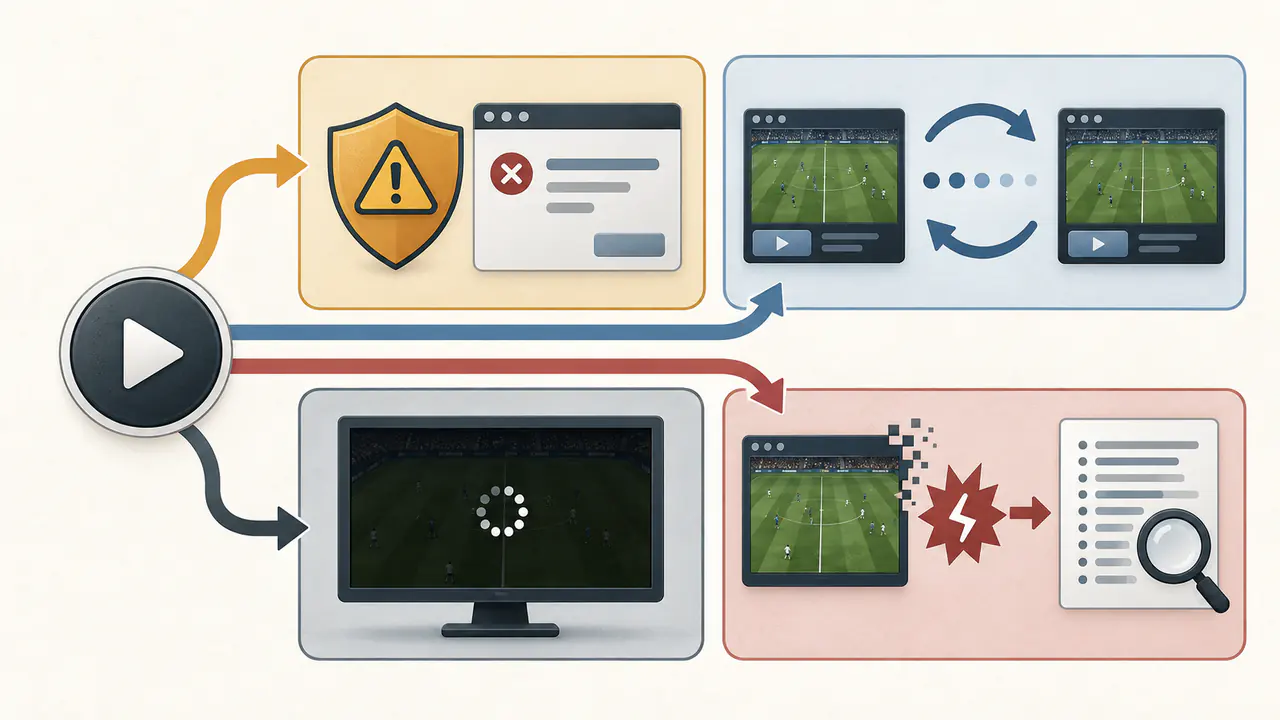
An EA developer used the same symptom split when responding to FC 27 players on Steam: window and close, black screen, return to Steam, or exact error text. A normal-looking Javelin handoff can still be followed by an exception inside the game executable, so do not paraphrase a code from memory.
Use the safest fix order
1. Check status and restart once
Open EA's live server-status page and check FC 27 and the EA app. Steam or Epic owners should also check their platform service. A widespread outage is a reason to pause, not a reason to edit Windows, reinstall drivers, or disable security.
Install pending Windows, launcher, and FC 27 updates. Close the launchers normally and restart the PC once. A clean restart can clear a stuck launcher or anti-cheat service without making a permanent change.
2. Repair FC 27 in the launcher that owns it
File verification is safer and faster than a full reinstall.
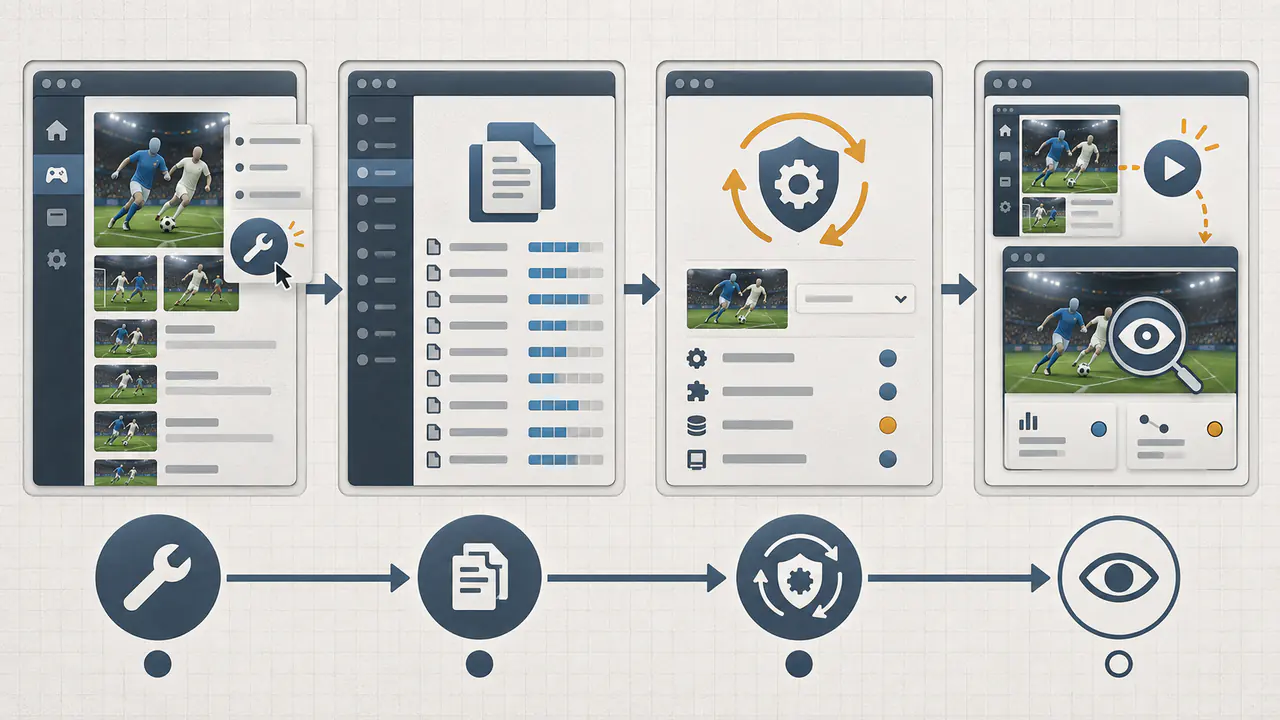
- EA app: Library > FC 27 > Manage > Repair.
- Steam: Library > FC 27 > Properties > Installed Files > Verify integrity of game files.
- Epic Games Launcher: Library > the three dots beside FC 27 > Manage > Verify.
Let one verification finish without another disk-heavy task. If the EA app is stuck updating, offline, or missing the game, use Menu > Help > App recovery > Clear cache. EA says cache clearing can help app and download faults; it cannot repair a server outage.
3. Reinstall Javelin only when its branch points there
FC 27 installs EA Javelin AntiCheat automatically. EA's current requirement is Windows 10 20H1, build 10.0.19041, or newer. If Javelin itself errors, will not update, or the verified game still returns immediately to the launcher, use EA's official Javelin installer and troubleshooting page. Select FC 27 and install it. If the installed copy is damaged, remove Javelin for FC 27 with that installer, restart Windows, then install it again.
Do not leave Javelin uninstalled: EA says protected games cannot run until it is reinstalled. Never download an anti-cheat installer, DLL, or “fixed” driver from a third-party mirror.
Use the exact error-code branch
- Error #41 on a Windows Insider build: update to the latest available Insider Preview build, restart, and retest.
- Error #701: EA provides a specific elevated file-system command. Use it only for Error #701 and copy it from EA's current page.
- Incompatible software or Error #119: update the exact software or driver named in the message. Disable it only if the current version remains blocked.
- “Please start the game from the EA app”: update EA app and Steam, close interfering software, then retry.
- Javelin service path or start error: EA says to relaunch the EA app as administrator—even for a Steam or Epic copy—and start the game there, or reinstall Javelin.
- Unrecoverable error: restart first; if it persists, EA's current path points to Secure Boot. Check the requirements before entering firmware settings.
Do not apply an error-code fix to a different error because its forum title sounds similar.
4. Close conflict candidates before uninstalling them
An EA developer responding to FC 27 launch failures specifically recommended closing other anti-cheat tools such as FACEIT Anti-Cheat or Riot Vanguard. The same response later added Steam Overlay, Discord, NVIDIA or AMD overlays, MSI Afterburner, and RivaTuner to the isolation list.
- Exit the overlay or monitoring app from its own menu.
- Fully close the other game launcher and anti-cheat service if its product supports that.
- Disconnect an optional VPN or proxy for the test.
- Launch FC 27 once.
- If nothing changes, reopen the tool before testing the next candidate.
Several players reported that removing FACEIT Anti-Cheat and restarting allowed FC 27 to launch. Others with the same symptom did not have FACEIT, and some were not helped by Javelin repair. That makes FACEIT a plausible conflict on affected systems, not the cause of every return-to-launcher failure.
Closing and updating should come before uninstalling. If a clean close is impossible and one named tool remains the clear suspect, uninstall that tool as a reversible diagnostic, restart, and keep its official installer available. Do not remove every anti-cheat package at once. If the ordinary pass changes nothing, use EA's official clean-boot guide instead of manually disabling random Windows services, then re-enable normal startup after the test.
Check Secure Boot only when the error calls for it
Secure Boot is not the first fix for a generic black screen. It is appropriate when Javelin reports an unrecoverable error, unacceptable configuration, or another message whose official instructions point to Secure Boot.
- Press Windows key + R.
- Enter
msinfo32. - In System Summary, read BIOS Mode and Secure Boot State.
EA says Secure Boot needs UEFI firmware, a GPT Windows system disk, and TPM 2.0. If BIOS Mode says Legacy, Secure Boot State says Unsupported, or you do not recognize the firmware options, stop and use the support guide for your exact PC or motherboard.
Incorrect BIOS changes can prevent Windows from starting. Do not toggle Legacy or CSM, convert a disk, update firmware, or change TPM settings from a generic gaming guide. Back up important data and use the manufacturer's exact instructions or professional help.
Javelin finished, but FC 27 opens black or crashes
Once Javelin completes and an FC 27 process or window appears, repeatedly reinstalling anti-cheat becomes less informative. Current player reports include black windows and reproducible fc27.exe exceptions after the Javelin stage. Those reports do not prove one common cause, but they show why the handoff matters.
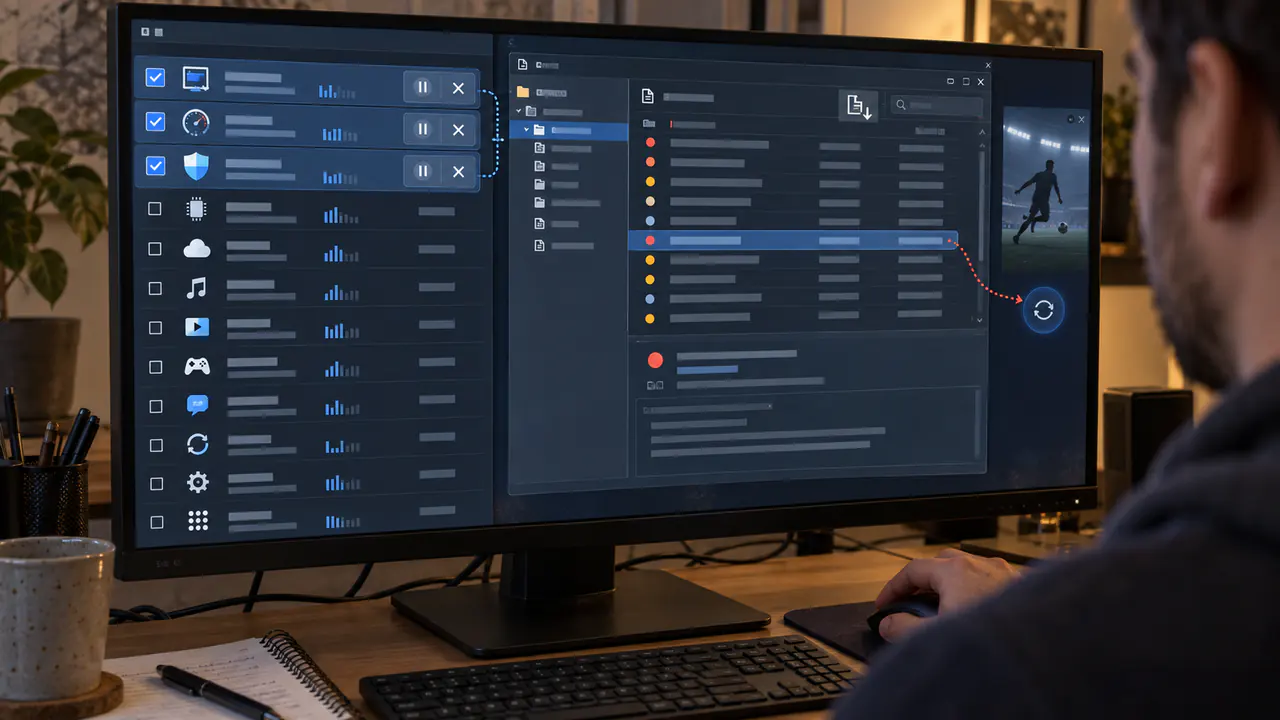
Capture the failure:
- Reproduce it once and note the exact time.
- Right-click Start and open Event Viewer.
- Open Windows Logs > Application.
- Check Error events from the failure time for
fc27.exe, EA app, or Javelin. - Record the exception code, faulting application, faulting module, and event time. Export the event if you plan to contact support.
Then run the EA Error Reporter and keep its Report ID. Include the storefront, FC 27 version, Windows version, when the failure happens, and the exact steps already tested.
An EA developer also suggested testing a new local Windows administrator account after file verification and Javelin reinstall had failed. Treat that as isolation: if the game launches there, the difference may be a per-user startup tool, permission, cache, or profile setting. It does not prove which one.
If Event Viewer records the same exception after a clean boot, verified files, current drivers, and a fresh local account, stop stacking workarounds. That is useful evidence for an FC 27 or component-level fault; reporting it is more valuable than deleting the named module by hand.
What not to do
- Do not disable Windows Firewall, Microsoft Defender, or another security suite globally.
- Do not add broad folder or executable exclusions from an anonymous post.
- Do not download replacement DLLs, anti-cheat drivers, or modified launchers.
- Do not bypass Javelin or use a mod, debugger, injector, or tampering tool while diagnosing the retail game.
- Do not uninstall every anti-cheat product before testing which one conflicts.
- Do not use the Error #701 command unless Javelin displays Error #701.
- Do not enable Secure Boot blindly or change Legacy, UEFI, or disk settings without the manufacturer's procedure.
- Do not reinstall the entire 100 GB game before trying the official verify or repair function.
- Do not combine five fixes before the next launch. One change per test preserves the evidence.
When to stop troubleshooting and report it
Stop the local fix loop when the same Javelin code remains after its official procedure; fc27.exe logs the same exception after verified files, a clean boot, and current Windows and GPU updates; the next proposed step is an unsupported driver, security bypass, registry edit, Windows rollback, or speculative BIOS change; or EA or the storefront reports an active outage.
Submit the screenshot, Event Viewer details, EA Error Reporter ID, dxdiag, storefront, and list of tested steps to EA Support or the FC 27 Technical Issues board. A concise reproducible report is easier to act on than “it does not work.”
Confirm the fix actually holds
- Reach the FC 27 main menu.
- Close the game normally.
- Start it a second time from the storefront you actually use.
- Open an offline Kick-Off match.
- Only then test an online mode.
If the menu and offline match work but online access fails, move to service and connection troubleshooting. If the game launches but frame pacing or input feels wrong, use TaskUp's FC 27 PC settings baseline for smoother frame times and lower input delay instead of changing Javelin again.
FC 27 PC launch FAQ
Why does FC 27 close after the Javelin splash?
The splash alone does not identify the cause. Javelin can fail because of damaged files or conflicting software, but it can also complete and hand off to an FC 27 executable that then crashes. Use the exact error, whether a game window appears, and the Windows Application log to choose the branch.
Do Steam and Epic versions still need the EA app?
Yes, the EA launch path still matters. Steam explicitly requires EA app installation or background use and a linked EA Account. EA's Javelin support also tells Steam and Epic owners to start through the EA app for a documented anti-cheat service error.
Should I uninstall FACEIT Anti-Cheat or Riot Vanguard?
Close or stop the other anti-cheat cleanly and retest first. An EA developer identified both as conflict candidates, but that is not a universal fix. Uninstall only the specific suspect as a later reversible test.
Does FC 27 require Secure Boot?
EA's Javelin guidance uses Secure Boot for specific security or unrecoverable-error paths; it is not the first fix for every launch failure. Check msinfo32 and the exact error before changing firmware settings.
Will clearing the EA app cache fix a server outage?
No. EA says cache clearing can help an app stuck offline, not updating, or missing a library item, but it cannot fix an EA service outage.
Should I reinstall FC 27?
Only after launcher verification, the Javelin branch, and conflict isolation have failed or official support asks for it. Repairing or verifying files is faster, safer, and more diagnostic than immediately downloading the game again.
This guide was checked on September 26, 2026 against EA's Javelin and Secure Boot guidance, FC 27 PC requirements and version 1.0.1 notes, official launcher repair instructions, Microsoft's Event Viewer guidance, EA developer replies, and recurring launch-week reports. Official instructions determine the order; community reports only identify diagnostic branches. TaskUp did not perform a first-person PC launch test, and no success rate is claimed. Recheck the official pages when the displayed error differs from this guide.
Based on EA Help: install and troubleshoot EA Javelin AntiCheat on PC. Release timing, balance, and features may change after publication.

Marcus Bell
Reproducible walkthroughs, source quality, corrections, accessibility, and maintenance rules that keep answers useful.
Continue reading